Jacen's Blog
IT Pro Tip - Fixing An AD Domain Trust Relationship
February 16, 2026
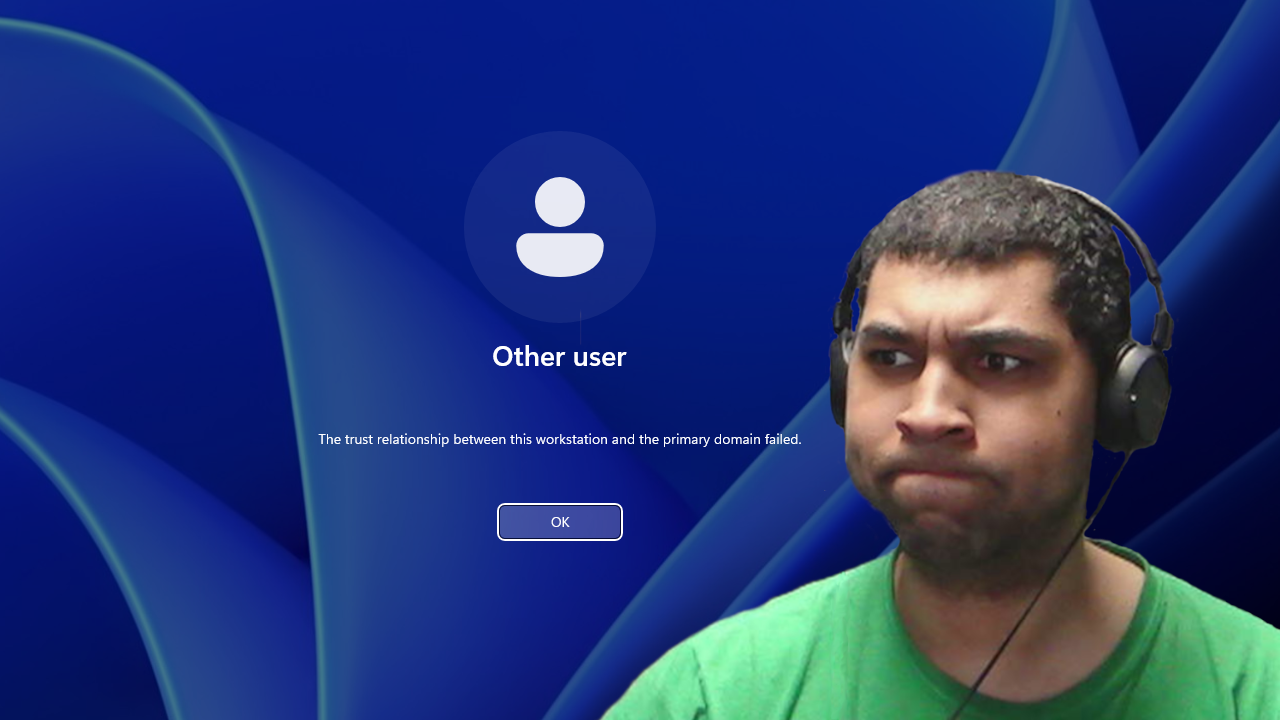
Let's set the stage: you've just started work for the day, sorting through yesterday's tickets with your morning coffee when you receive a call from a user who can't log into their account. No amount of account unlocks or password resets seems to fix the issue. Stumped, you walk to the user's desk (or connect remotely if you're fancy) and try to sign in yourself only to be greeted with a message of "The trust relationship between this workstation and the primary domain failed." What does this mean, what could have caused it, and how can you fix it?
A Broken Trust
When you join a computer to a Microsoft Active Directory domain, it creates a computer account to allow the computer to access Group Policy objects, perform user authentication, and access other domain resources if needed. Like user accounts, computer accounts are protected with a password to facilitate secure communication. To enhance security, Windows rotates this password regularly. By default, the workstation updates its password every 30 days, although this can be customized in Group Policy.
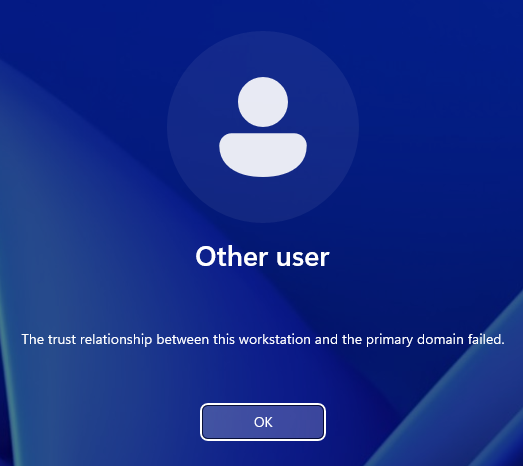
Of course, if the password changes on either the domain or workstation side without the other party being informed of it, the two can no longer communicate securely, breaking the trust relationship. The most obvious sign of this is that "The trust relationship between this workstation and the primary domain failed" error message I mentioned earlier.
Figuring out why this happened is a bit trickier. Maybe a device was incorrectly recovered from a backup or snapshot. Maybe there was a network interruption during the password change negotiation. Maybe a solar flare flipped exactly the wrong bit at exactly the wrong time. The end result is the same regardless.
Regaining Their Trust
It's great that we have a vague idea of the cause, but that doesn't help us fix it, now does it?
The easiest fix is to remove and re-add the computer to the domain. This will recreate the computer account, bringing the password back into sync.
Still, that's a bit disruptive, requiring at least two reboots to complete the process. Or maybe you're getting this error on a server or other device that you don't really want to reboot. Fortunately, like many problems in Windows, PowerShell has a solution for us.
First things first, you will need a local administrator account to log into for this. You would have needed this even if you went with the "remove and re-add" method, but it's still something to keep in mind. Hopefully you have a backdoor account handy or have an RMM that you can use to create one like I've described before. In a pinch, if you've logged into the device with an AD admin account in the past, you can temporarily disconnect the device from the network to force Windows to use the cached login rather than trying to contact a domain controller.
Once you're logged in, open a new PowerShell session as administrator. You can use the following cmdlet to confirm the current status of the trust relationship.
Test-ComputerSecureChannel -VerboseWithout the -Verbose flag, the cmdlet will only return "true" or "false", but with it, we get a helpful error message alongside it.

Now that we've confirmed that the trust relationship is the issue, we can use that same cmdlet to fix it.
Test-ComputerSecureChannel -Repair -Credential <domain>\<username> -VerboseReplace <domain> with the NETBIOS name of your AD domain and <username> with the username of an AD domain admin. You'll be prompted for the password to that account, so make sure it's one you know.
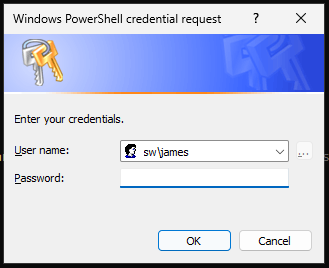
If everything works, you should receive a confirmation that the secure channel was repaired.

Then, you can run the first cmdlet again to confirm that everything reports back as okay.

Just like that, your user should be able to log in, no reboots required.

Conclusion
I wouldn't say this is a common issue, but it's certainly not an unusual one. It's not difficult to remove and re-add a computer to a domain, but the PowerShell method is way more elegant and much faster. Keep it in mind in case you ever run into this issue.